Leads API Quick Start
Send your first Leads API request: base URL, bearer auth, adding, updating, listing and removing leads (single and bulk), with code samples.
Written By voiceaiwrapper
Last updated 26 days ago
This quick start gets you from zero to your first lead added through the API. You'll make one request that adds a lead to an outbound campaign, then learn the calls to list, update and remove leads, one at a time or in bulk. It's written for whoever builds the integration: you, your developer, or the person setting up your Zapier, Make or n8n step.
Allow about 10 minutes.
Available on: plans that include Campaigns API and Platform API. Without Campaigns API, the Manage leads via API tab is hidden. Without either one, the API answers with an upgrade message.
Before you start
You'll need:
- An outbound phone campaign. The Leads API is built for outbound campaigns, and the Manage leads via API tab only appears on them. See Run an Outbound Phone Campaign.
- An API key. See Create and Manage API Keys.
- The campaign's ID. You get it with the ready-made code in Step 1.
Adding a lead to an active campaign works like adding one by hand: the agent can call it as soon as the campaign's calling window allows. Those calls use AI credits on VAW Native, or usage on your own Vapi, Retell AI or ElevenLabs account. Test with a paused campaign or your own phone number first.
Step 1: Copy a ready-made request
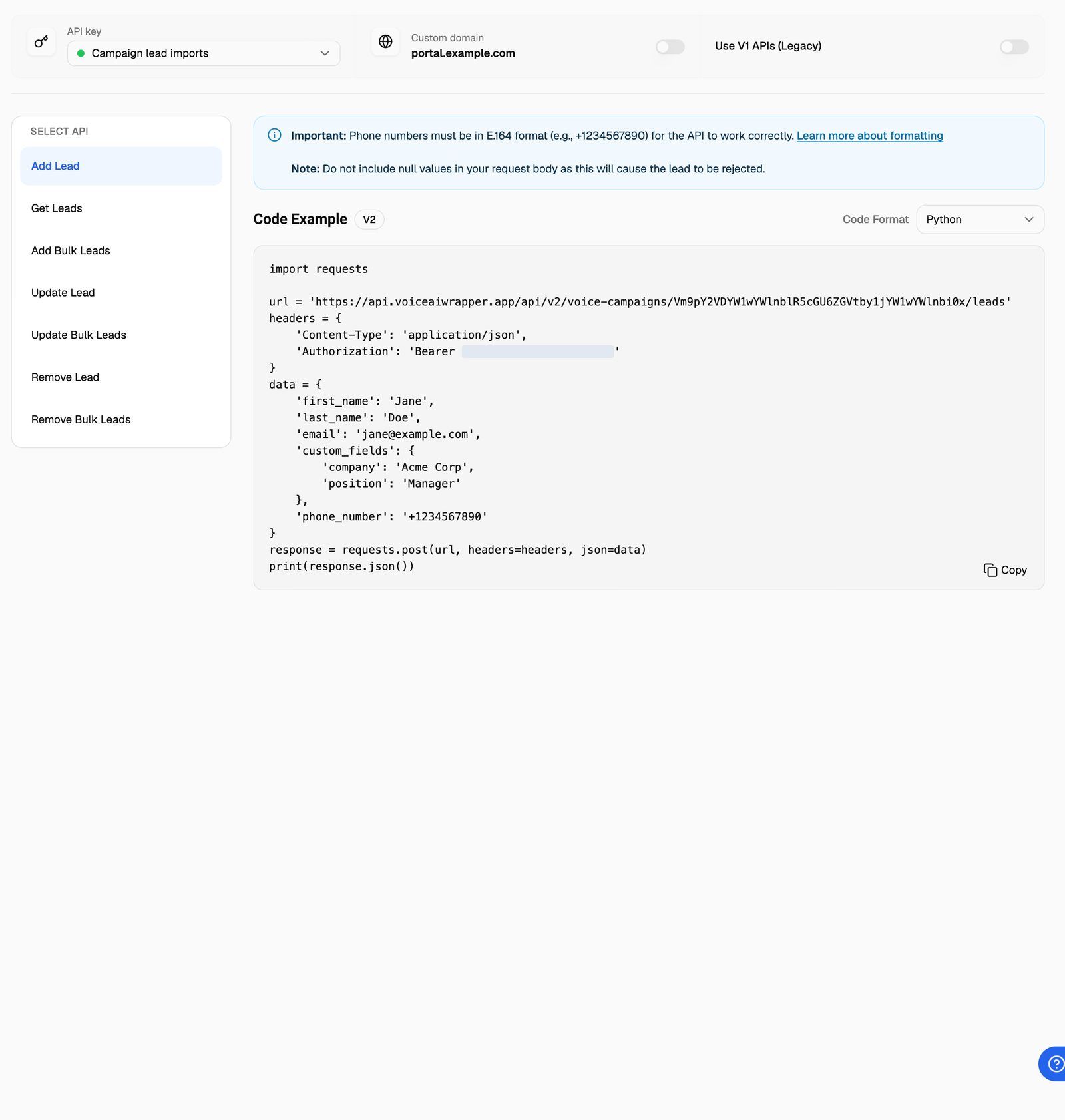
Each outbound campaign builds working code for you, with its campaign ID and your key filled in.
- Open the outbound campaign and click the Manage leads via API tab. It opens on Documentation.
- Under API key, pick the key to use. If it says No API key present, click Generate API Key.
- Under Select API, click Add Lead.
- Under Code Format, choose cURL, JavaScript or Python.
- Click the copy button on the Code Example.
Step 2: Send your first request
Every request has the same three parts.
Here's the Add Lead request. Replace CAMPAIGN_ID and YOUR_API_KEY, or use the copy from Step 1.
curl --location 'https://api.voiceaiwrapper.app/api/v2/voice-campaigns/CAMPAIGN_ID/leads' \
--header 'Content-Type: application/json' \
--header 'Authorization: Bearer YOUR_API_KEY' \
--data-raw '{
    "first_name": "Jane",
    "last_name": "Doe",
    "email": "jane@example.com",
    "phone_number": "+14155550123",
    "custom_fields": {
        "company": "Acme Corp",
        "position": "Manager"
    }
}'
The same request in Python:
import requests

url = "https://api.voiceaiwrapper.app/api/v2/voice-campaigns/CAMPAIGN_ID/leads"
headers = {
    "Content-Type": "application/json",
    "Authorization": "Bearer YOUR_API_KEY",
}
lead = {
    "first_name": "Jane",
    "last_name": "Doe",
    "email": "jane@example.com",
    "phone_number": "+14155550123",
    "custom_fields": {"company": "Acme Corp", "position": "Manager"},
}
response = requests.post(url, headers=headers, json=lead)
print(response.status_code, response.json())
A successful request returns status 200:
{ "status": "success", "message": "Lead added to the campaign successfully" }
The lead now appears on the campaign's Leads tab.
Rules for lead data
phone_numberis required. Use E.164 format: a+, the country code and the number, with no spaces or dashes, such as+14155550123.- One lead per number per campaign. Sending a number that's already in the campaign returns Lead already exists in the campaign.
first_name,last_name,emailandcustom_fieldsare optional.custom_fieldsis an object of your own key–value pairs.- Leave out fields you don't have rather than sending
null. The page warns that null values can get the lead rejected.
Step 3: Manage your leads
All paths below start with the base URL and /voice-campaigns/CAMPAIGN_ID. They use the same Authorization header.
List leads
Get Leads returns the newest leads first. limit is the page size (default 50, maximum 200) and offset is how many to skip. Each lead includes its id, contact details, custom_fields and calling status fields such as call_status, answered, attempts_made and do_not_call. The page_info object tells you total_count and whether there's a next page.
Add many leads at once
Add Bulk Leads takes a list of lead objects. The leads are added in the background, so the response only confirms they're queued: Leads are queued to be added to the campaign. Leads without a phone number are skipped, and so are numbers already in the campaign. If the campaign has ended, none are added. To check what was added, use Get Leads or the Leads Event Webhook.
Update a lead
Update Lead finds the lead by phone_number, so send the number exactly as you added it. Include only the fields you want to change:
curl --location --request PATCH 'https://api.voiceaiwrapper.app/api/v2/voice-campaigns/CAMPAIGN_ID/lead/update' \
--header 'Content-Type: application/json' \
--header 'Authorization: Bearer YOUR_API_KEY' \
--data-raw '{
    "phone_number": "+14155550123",
    "do_not_call": true,
    "do_not_call_reason": "Asked not to be called"
}'
Update Bulk Leads and Remove Bulk Leads take a list and return a results list with one entry per item, showing success and a message, so you can see which ones failed.
Remove a lead
Send the lead's phone_number, or its campaign_lead_id (the id from Get Leads). The response is Lead removed successfully.
Remove Lead and Remove Bulk Leads delete the lead from the campaign. This can't be undone. To stop calls but keep the lead, update it with "do_not_call": true instead.
Version 1 (legacy) endpoints
The Use V1 APIs (Legacy) switch shows the older endpoints at https://api.voiceaiwrapper.app/v1/api. Version 1 only has Add Lead, Update Lead and Remove Lead, and needs your organization ID as tenant_id in the Add Lead body. Its examples always use the default address; your custom domain is offered for version 2 only. Use it only for an integration that already relies on it; build new ones on version 2.
Limits
Each endpoint accepts up to 100 requests per minute for each API key. Above that, you get status 429 with Rate limit exceeded. Please try again later. Wait a minute and retry, or use the bulk endpoints to send many leads in one request. See API Reference Overview and Rate Limits.
Troubleshooting
I get "Invalid request method".
I get "Invalid request method".
The request used the wrong HTTP method. Update calls must be PATCH and remove calls must be DELETE. With cURL, add --request PATCH or --request DELETE. Without it, cURL sends a POST when you include a body.
I get "Authorization header not found", "API key not found" or "API key is disabled".
I get "Authorization header not found", "API key not found" or "API key is disabled".
Check the header is exactly Authorization: Bearer YOUR_API_KEY, with one space after Bearer. "API key not found" means the key was deleted or mistyped. "API key is disabled" means its Enabled switch is off. See Create and Manage API Keys.
I get "End date of the campaign has passed, cannot add lead(s)".
I get "End date of the campaign has passed, cannot add lead(s)".
The campaign has ended, so it can't take new leads. Send them to a campaign that is still running. See Campaign Statuses and the Campaign Switch.
I get "Lead not found" when I update or remove a lead.
I get "Lead not found" when I update or remove a lead.
The phone number doesn't match a lead in this campaign. Use exactly the number you added, including the + and country code, and check the campaign ID. You can look up the stored number with Get Leads.
I get a "premium feature" message with status 403, or status 402.
I get a "premium feature" message with status 403, or status 402.
Related articles
Was this helpful?
Still need help? Share an idea